Scores are recommendations with reasons, not decisions. A human reviews and decides who moves forward. Edjobster ranks and explains, and the hire is yours to make.
Before you start
At least one job with applicants, pulled in by a connector (your inbox, a Google Sheet, Zoho Recruit or the Chrome extension) or added by hand.
Screening credits available in your workspace (one credit screens one candidate).
Setup steps
1
Open the job
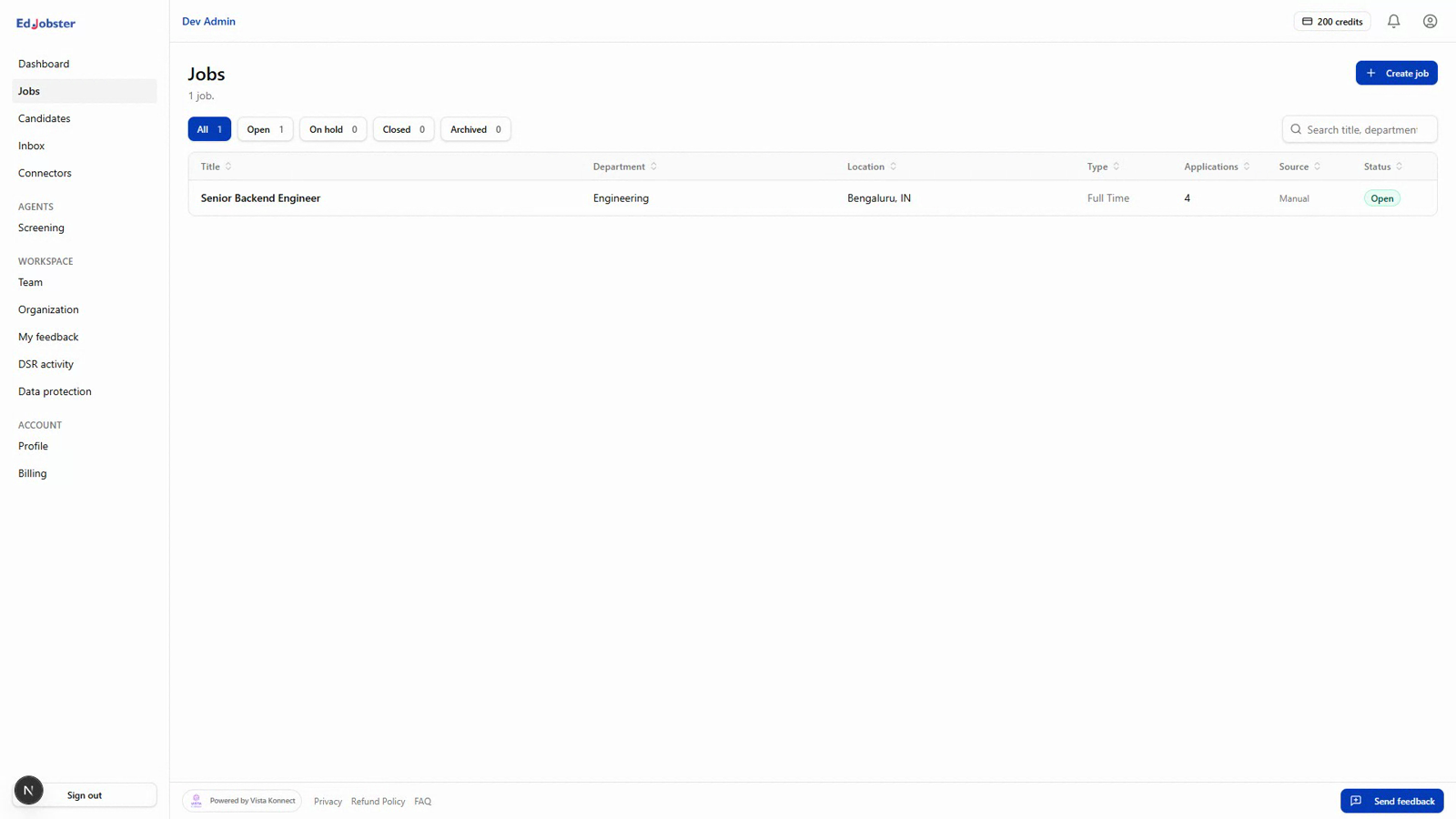
Go to Jobs and select the role you want to screen for. Its Applications column shows how many are still unscored, and Needs scoring lists only the jobs with some waiting.
2
Check the screening criteria
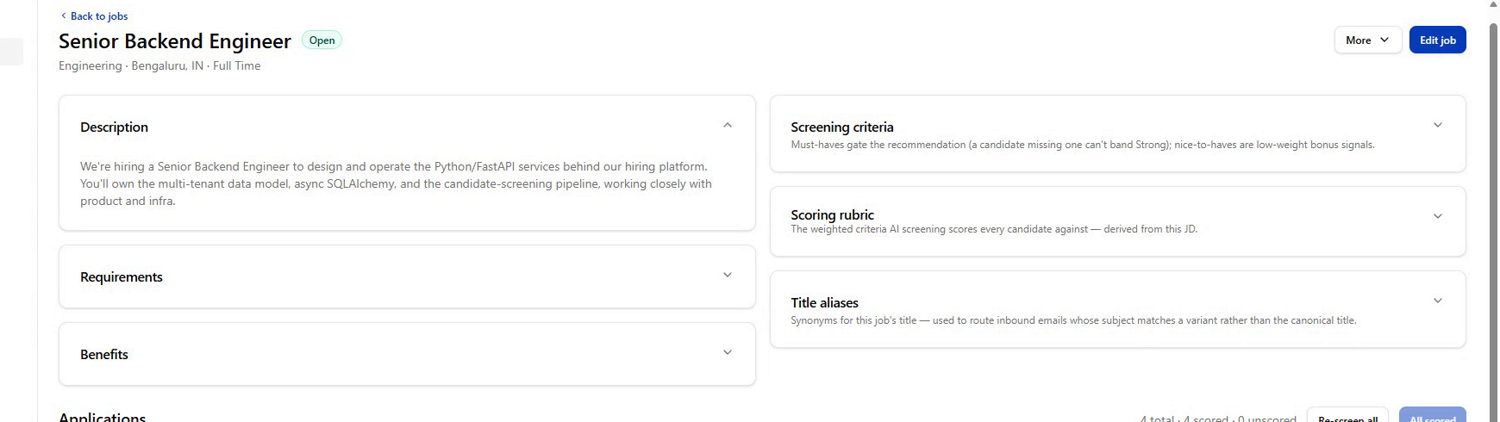
On the job's Overview tab, Screening criteria holds the Must have criteria and Nice to have you set (a Zoho job takes its must-haves from Zoho). The Scoring rubric below turns them and the job description into weighted criteria. After you change the criteria, click Regenerate rubric so screening uses the new ones. Good criteria make for good scores.
3
Run screening
On the Applicants tab, click Run screening on N unscored to screen everyone not scored yet. To screen particular people, tick them and click Screen in the bar that appears (it confirms the credits first). Each candidate costs one credit.
4
Let it run
Several candidates are scored at once, and a message tells you when the run is done. You're only charged for screenings that complete, so a failed one never costs a credit.
5
Read the results
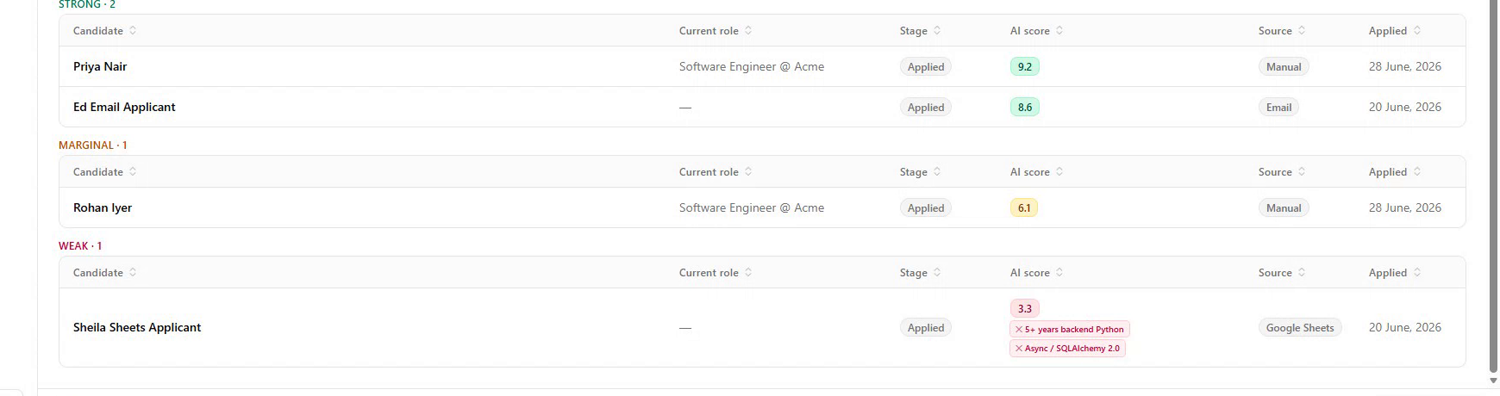
Applicants are grouped Strong, Marginal and Weak, highest score first, and each shows the must-haves they're missing. A missing must-have keeps a candidate out of Strong, however high the score. Open a candidate and click View score details for the summary, strengths and risks. Export downloads the ranked shortlist with the evidence for each criterion.
6
Re-run anything that failed
Candidates that couldn't be scored are listed under Screening failed with the reason. Fix the cause (see Troubleshooting), then click Run screening on N unscored again, which includes them, or use Retry run on the Screening runs page.
Verify it worked
You have a ranked shortlist: candidates grouped Strong, Marginal and Weak, each with their score, any missing must-haves, and a summary you can act on.
Troubleshooting
Some candidates failed to screen.
The reason shows under Screening failed on the job, and on the run's page. Common ones: the scoring rubric couldn't be generated (open the job's Overview, generate the rubric, then re-run), or the AI service was briefly unavailable (re-run in a few minutes). A run without enough credits for everyone is refused before it starts.
A candidate is listed under Not a CV, or has no score.
Screening needs resume text. On the candidate's page, use Use as CV on the right document or Re-read CV, then Re-screen. If the application arrived by email, promoting it with its attachment puts the CV on file.