Add Edjobster's screening widget to Zoho Recruit, so recruiters can see scores, screen candidates and schedule interviews from a candidate, a job opening or the candidate list.
The widget works on Edjobster's records inside Zoho: the score, the interview and your team's notes. It doesn't write anything back to Zoho Recruit.
Before you start
The Zoho Recruit connector is already connected in Edjobster and at least one sync has completed.
Zoho Recruit Standard tier or above, and administrator access to your Zoho Recruit org (for Setup customisation).
A plan that includes the Zoho ATS connector (Growth or Scale).
Every recruiter who will use the widget has an Edjobster login. Invite anyone who doesn't from Team.
Setup steps
1
Find the widget links in Edjobster
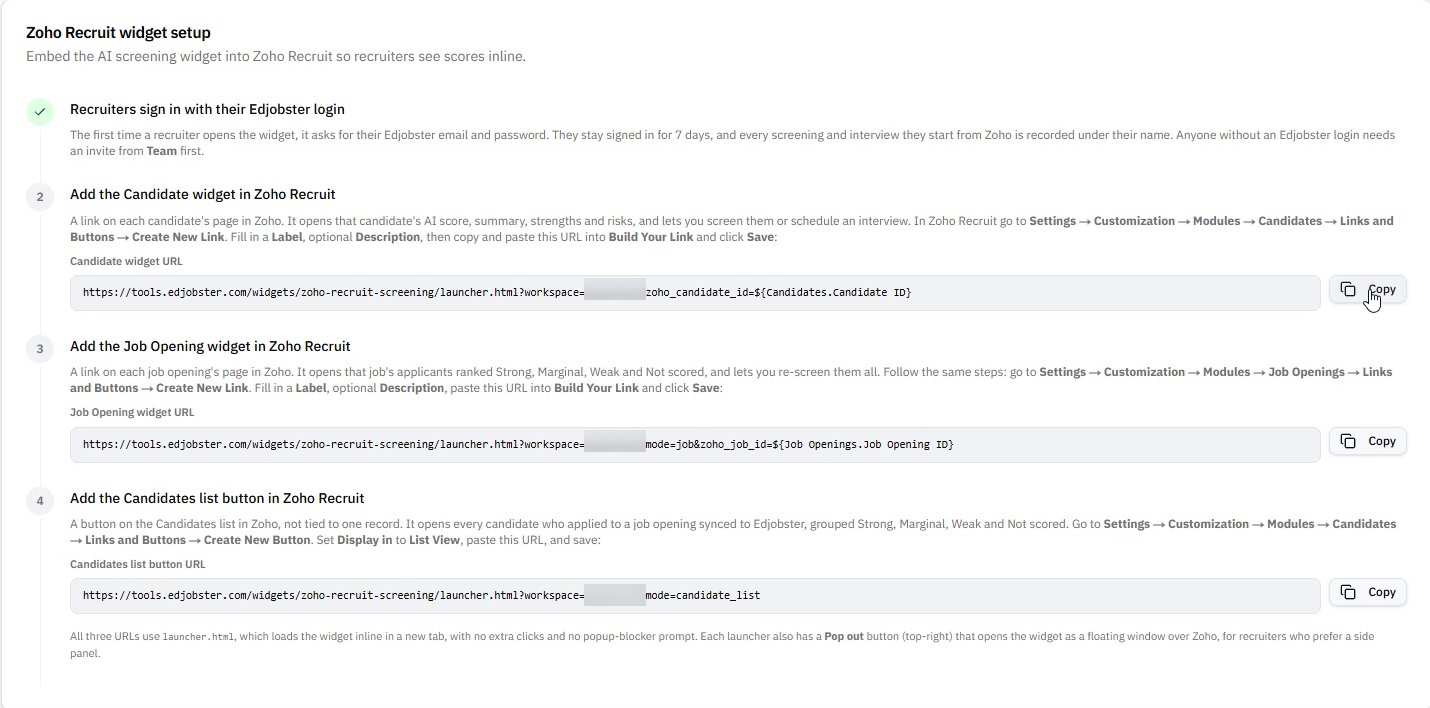
In Edjobster, open Connectors, choose Zoho Recruit and find the Zoho Recruit widget setup card. It shows the three links ready to copy. They name your workspace and carry no password or secret, because each recruiter signs in to the widget with their own Edjobster login.
2
Add the screening criteria fields to Job Openings
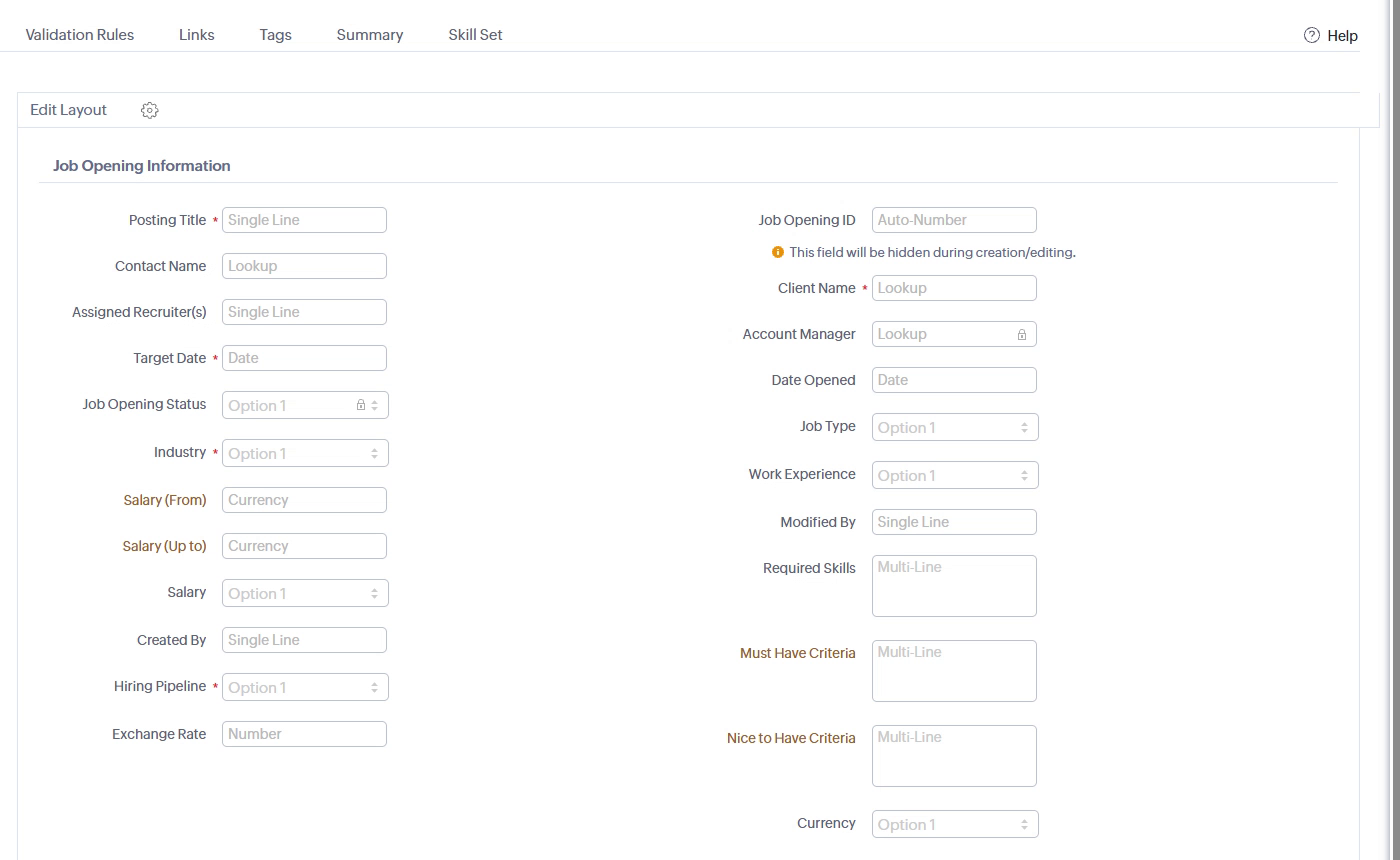
Screening scores each candidate against the job's must-haves, and for a Zoho job they come from Zoho Recruit. Go to Setup → Customization → Modules → Job Openings and, on the Layout tab, add a multi-line text field named Must Have Criteria. You can add a second one named Nice to Have Criteria for bonus signals. Then fill in the must-haves on every job opening you want screened. Edjobster reads them on each sync, so make lasting edits in Zoho. Without them, that job's candidates can be scheduled but not screened.
3
Create the candidate link in Zoho Recruit
In Zoho Recruit, go to Setup → Customization → Modules → Candidates, open the Links tab, and click Create New Link. Label it Edjobster AI Score and paste the launcher URL from the widget card (it names your workspace and carries the candidate merge field), then save.
The exact URL to paste is shown on the widget card in Edjobster. Copy it from there rather than typing it, so the workspace and merge field are exactly right.
4
Create the job opening link
Still in Setup → Customization → Modules, choose Job Openings, open the Links tab and click Create New Link. Give it a label such as Edjobster AI Scores, paste the Job Opening widget URL from the widget card, then save. The link opens that job's applicants grouped Strong, Marginal, Weak and Not scored.
5
(Optional) Keep the candidate list handy
The Candidates list URL on the widget card opens everyone who applied to a job opening synced to Edjobster, grouped by band. Bookmark it in your browser. If your Zoho Recruit plan includes custom buttons, you can add it as a button on the Candidates list view instead, or as a Web Tab, which shows the list inside Zoho.
6
Run a sync
Back in Edjobster, open Connectors, choose Zoho Recruit and click Sync from Zoho Recruit so your candidates are present before you test.
7
Open a candidate in Zoho
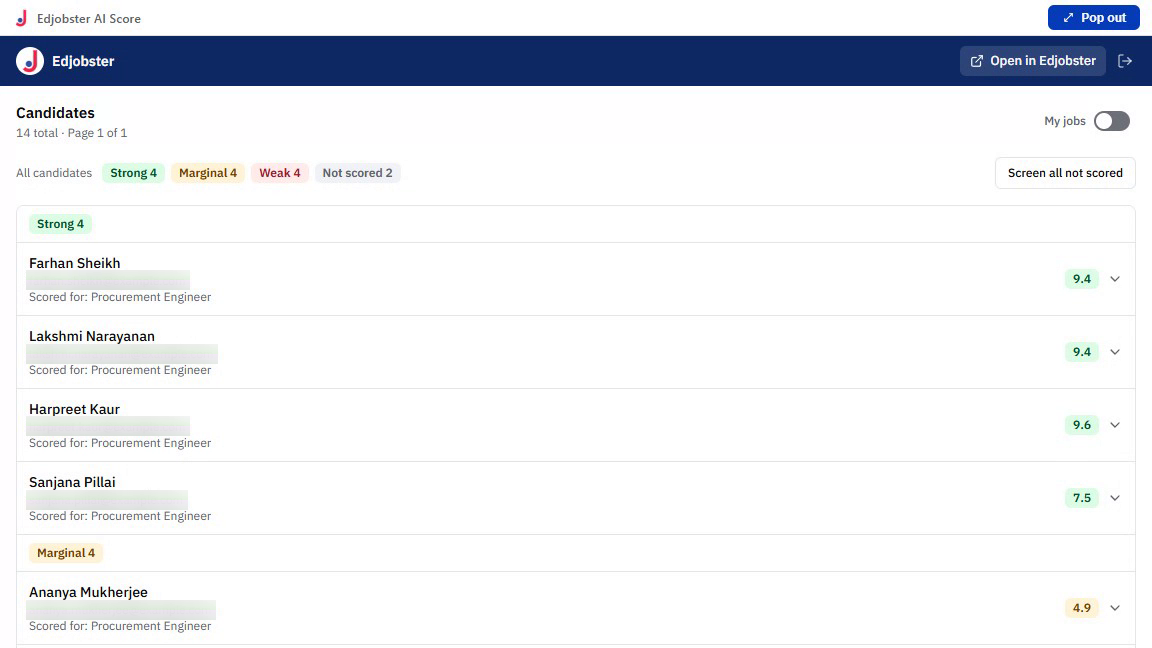
On any candidate's detail page in Zoho Recruit, click the Edjobster AI Score link. The screening panel opens in a new tab. The first time, it asks for your Edjobster email and password, and you stay signed in on that browser for 7 days. A scored candidate shows the score, summary, strengths and risks, with Re-screen candidate. One not scored yet shows Screen candidate. Pop out, at the top right, opens the panel as a floating window over Zoho instead.
8
Work through the candidate list
The Candidates list URL opens everyone who applied to a synced job opening, grouped Strong, Marginal, Weak and Not scored. Turn on My jobs to keep only the jobs you created and the ones where an applicant is assigned to you. Screen all not scored screens the rest after you confirm, the most recent first, up to 100 at a time, and uses one credit per candidate. On a job opening's link, Re-screen all re-screens that job's applicants.
9
Schedule the interview and keep notes
On a candidate, click Schedule interview. It opens the same form as the dashboard, with you as the host unless you pick someone else. The candidate picks a slot from the host's working hours, chooses from times you offer, or you set the time yourself (that books it straight away and uses one credit). Once it's set, the panel shows the interview with Re-send invite, Reschedule, Record outcome or Cancel interview. An outcome stays in Edjobster, and the application keeps the stage Zoho Recruit gives it. Below that, Notes holds your team's notes on the application. They stay in Edjobster and are never read by the assistant. Scheduling needs a plan that includes it.
Verify it worked
Open any candidate in Zoho Recruit and you see an Edjobster AI Score link in the Links section. The first click asks you to sign in. For a scored candidate it shows the score, summary, strengths and risks. For one not scored yet it shows Screen candidate. On a job opening, the link lists that job's applicants by band.
Troubleshooting
“This link is for another workspace”.
You're signed in to a different Edjobster workspace than the link names. Click Sign out in the widget, then sign in with your account for this workspace.
“Your session ended. Sign in again.”
Your password changed, your account was turned off, or your 7 days ran out. Sign in again with your Edjobster email and password.
Your Zoho links were made before recruiters signed in to the widget.
They still open the record once the recruiter signs in with their Edjobster login. Replace them with the links from the widget setup card, which name your workspace.
“Candidate not synced yet”.
The candidate exists in Zoho but hasn't synced to Edjobster yet. Run a sync from the Connectors page and retry. If the link is an older one built on the candidate's email, replace it with the link from the widget setup card.
The panel is blank or shows a network error.
Confirm your Edjobster host is reachable from the recruiter's browser and that the full launcher URL was pasted into the link.