See jobs, applicants grouped by score band and full screening detail, run screening and schedule interviews, all from a browser toolbar popup without opening the dashboard.
The Edjobster Hiring Agent extension is a toolbar popup: click the icon anywhere in your browser to open a mini-dashboard of jobs, applicants by band, and screening controls. Each recruiter signs in with their own Edjobster login, so actions are attributed to the right person.
Before you start
Your Edjobster email and password (the same ones you use for the dashboard).
Chrome, or another Chromium browser with extension support.
Setup steps
1
Add it to Chrome
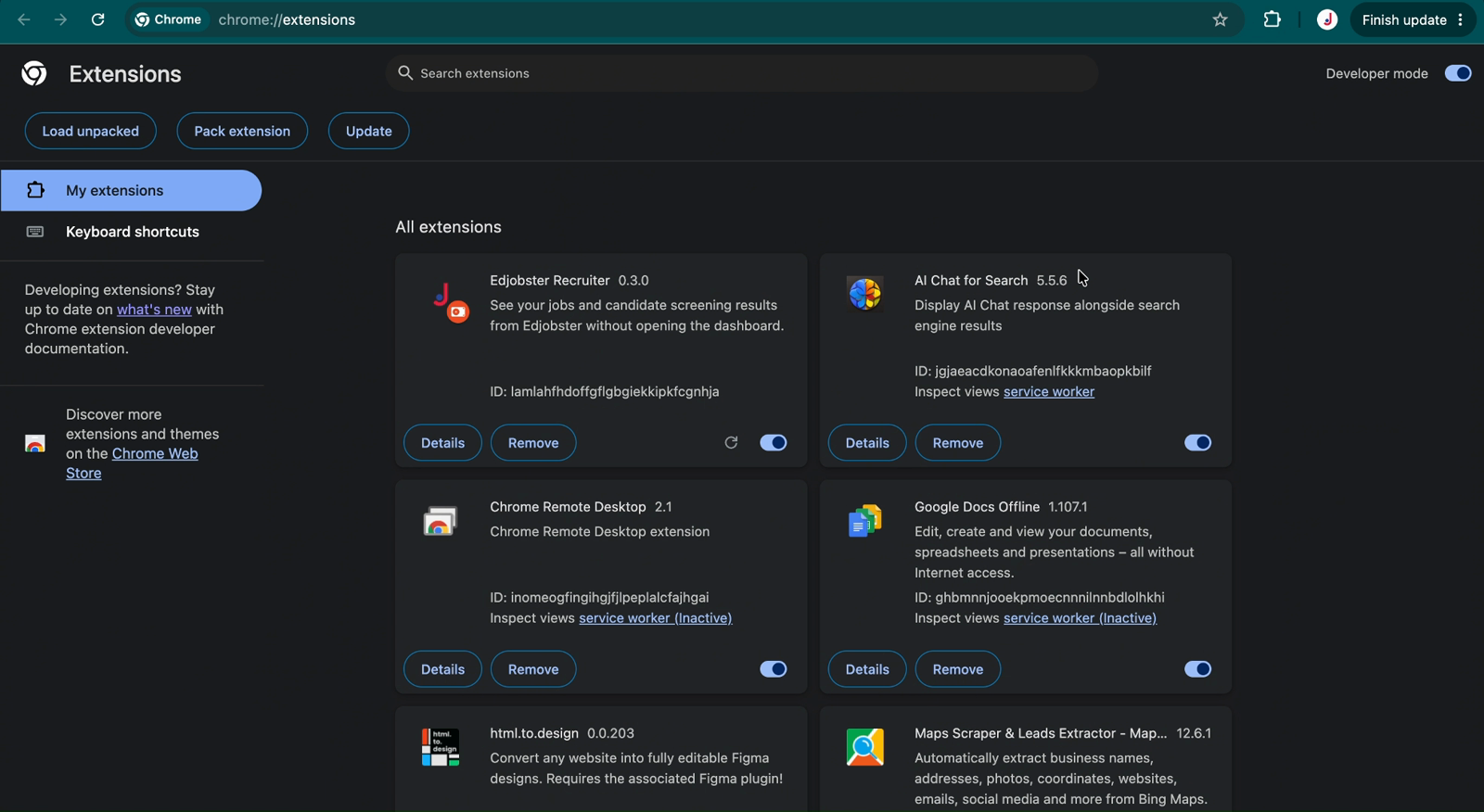
Open the Edjobster Hiring Agent listing on the Chrome Web Store and click Add to Chrome. Pin the Edjobster icon from the puzzle-piece menu for one-click access. (Self-hosted deployment? Your admin shares an extension package to load unpacked instead, and they'll walk you through it.)
2
Sign in
Click the Edjobster toolbar icon and enter your email and password. Forgot it? Use the reset link in the popup. New to Edjobster? Request a trial right from there.
3
Use the popup
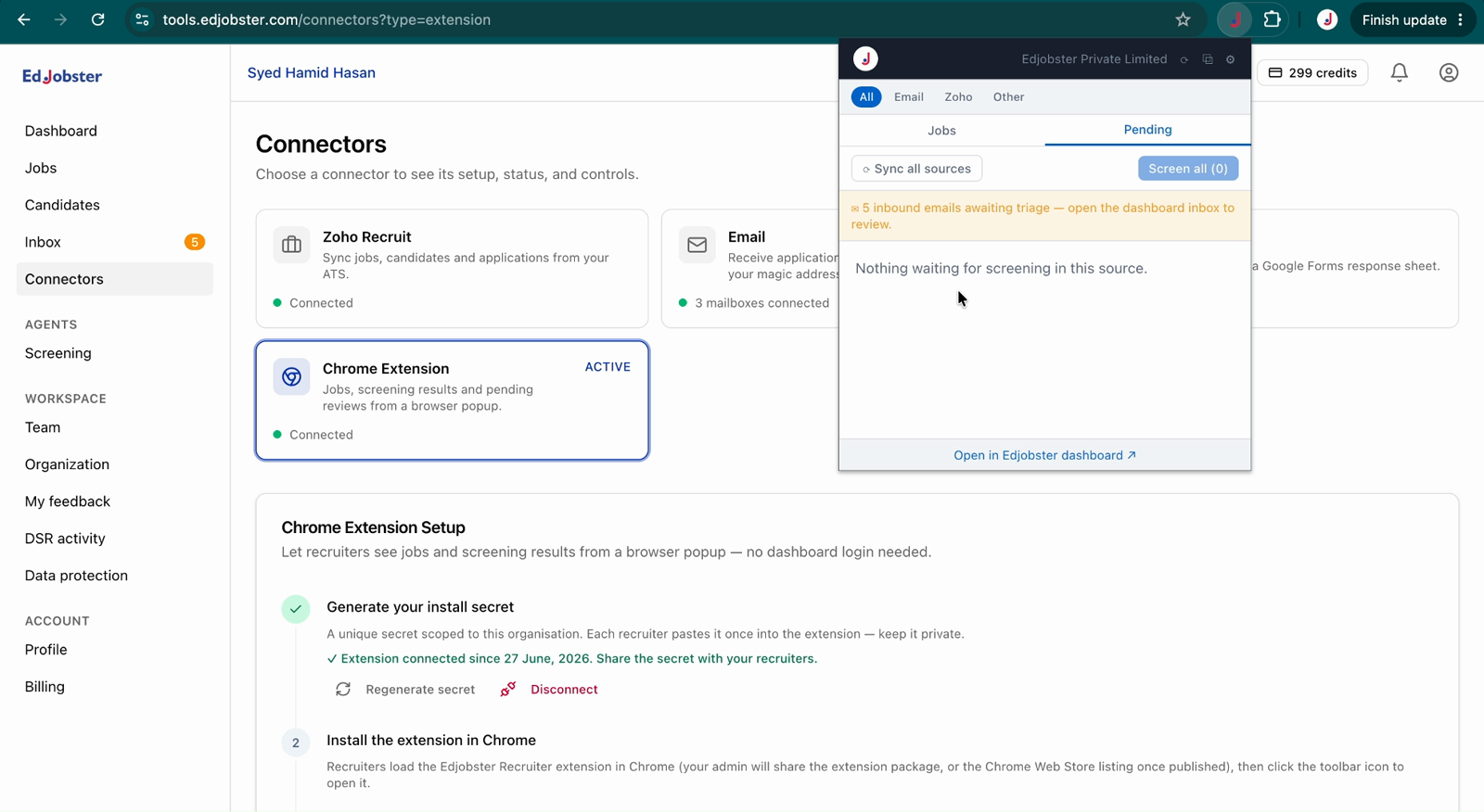
The Jobs tab drills from jobs → applicants by band → screening detail, with Screen candidate / Re-screen candidate. The Pending tab shows applications awaiting a first screening. Source chips (All, Email, Zoho, Google Sheets, Other) filter the view, each shown only when it has something to list. On the Jobs tab, My jobs keeps the jobs you created and the ones where an applicant is assigned to you, and the search box finds a candidate by name or email across every job. Sync all sources refreshes every connected source on demand. Open in Edjobster at the top opens what you're looking at in the dashboard.
4
Schedule an interview
On a candidate, click Schedule interview. Pick the host, the length, where it happens and anyone else attending, then how the time is set: the candidate picks a slot from the host's working hours, you offer specific times for them to choose from, or you set the time yourself (that books it straight away and uses one credit). Once it's set, the candidate's interview card lets you re-send or cancel the invite, reschedule, or record the outcome. Scheduling needs a plan that includes it.
5
Keep working notes
On a candidate, open Working notes to record how your latest contact went, set the owner, plan the next task with an optional reminder time, and keep notes for your team. Notes are private to your team and never read by the assistant.
6
Watch the toolbar icon
While you're signed in, the toolbar icon shows how many applications are waiting for their first screening, plus emails still to sort in the inbox. From 10 up it shows a blue ring instead. Point at the icon for the exact count. It updates every 5 minutes.
7
See screening in your inbox (optional)
Open the settings in the popup and turn on Screening in your inbox. Chrome asks to let the extension read Gmail and Outlook.com pages. From then on, when you open an email, a small card shows the newest sender in the conversation who is a candidate in your workspace: their score and interview status, with Screen candidate, Schedule interview and a link to their page. Edjobster looks up the senders' addresses (at most five) and doesn't keep them. Minimise the card to a small pill, or close it for that conversation.
Verify it worked
Click the toolbar icon and your jobs appear, with applicants grouped Strong / Marginal / Weak / Not scored. Open a candidate and you can screen or re-screen them right there.
Troubleshooting
“Invalid email or password” at sign-in.
Use your dashboard email and password. If you've forgotten it, click Forgot password? in the popup to reset.
The popup drops back to the sign-in screen later.
Your session expired or was revoked, for example because you changed your password or an admin suspended the workspace. Sign in again.
“Your screening access is paused”.
The workspace is in trial-expired or payment lockdown. Viewing still works, and screening resumes once billing is settled.
There's no Screen button, and the candidate says there's no CV text on file.
That candidate has no resume text yet. If it came by email, promote it with the attachment first, then screen.